Calculations
How ReceiptLab calculates receipt totals
ReceiptLab rounds each item line to cents, adds those lines, subtracts the discount, calculates tax on the discounted subtotal, then adds a fixed tip. The preview, PNG and PDF use the same calculated amounts.
The calculation order
- Item amount: multiply quantity by unit price and round the line to cents.
- Subtotal: add the rounded line amounts.
- Discount: subtract a fixed amount, or calculate the chosen percentage of the subtotal and round it to cents.
- Tax: multiply the discounted subtotal by the entered tax rate and round it to cents.
- Total: add the discounted subtotal, rounded tax and fixed tip.
ReceiptLab rounds an exact half-cent upward. Quantities support three decimal places, prices two, and percentage rates three. Enter a unit such as hour or ounce in the description so the quantity has a clear meaning.
The editor uses one tax rate for the entire discounted subtotal. It does not choose your rate or calculate separate tax treatments for different items. The tip is a fixed amount added after tax; the editor does not tax it. These are product behaviors, not instructions about how a particular transaction should be taxed.
A complete example: $5.96 total
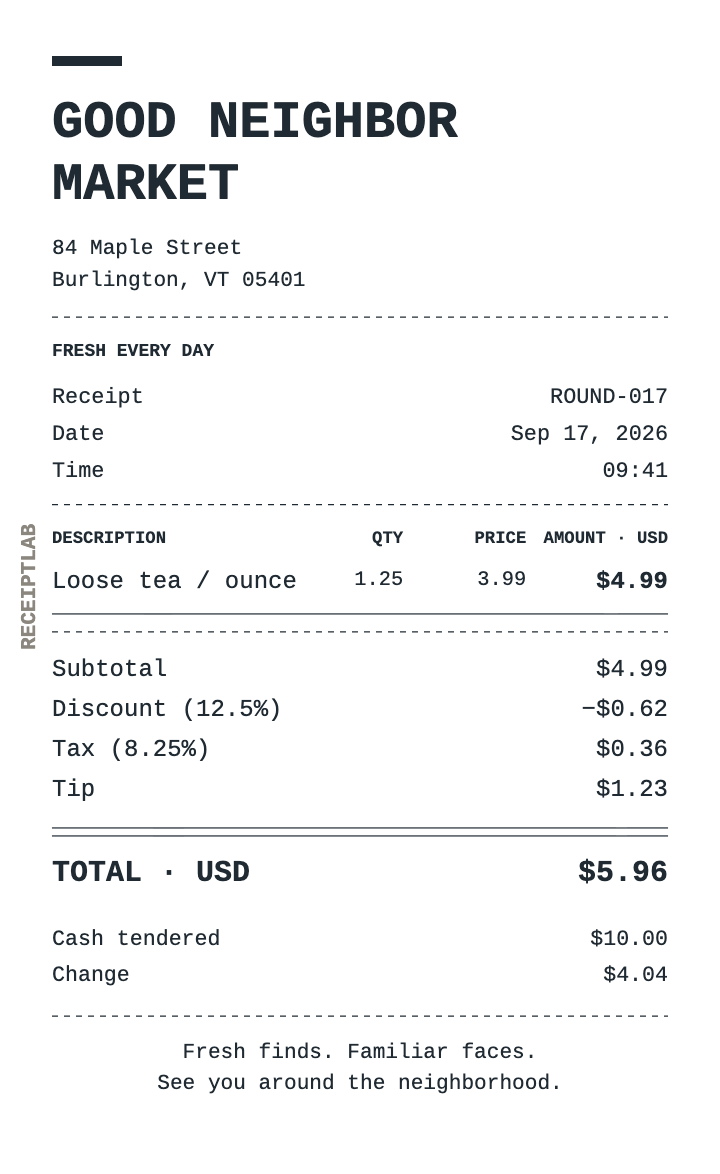
The fictional sample has 1.25 ounces of loose tea at $3.99 per ounce, a 12.5% discount, an illustrative 8.25% tax rate and a $1.23 tip.
| Step | Amount |
|---|---|
| Line: 1.25 × $3.99 = $4.9875, rounded | $4.99 |
| Discount: 12.5% × $4.99 = $0.62375, rounded | −$0.62 |
| Discounted subtotal: $4.99 − $0.62 | $4.37 |
| Tax: 8.25% × $4.37 = $0.360525, rounded | $0.36 |
| Fixed tip | $1.23 |
| Total: $4.37 + $0.36 + $1.23 | $5.96 |
| Cash received | $10.00 |
| Change: $10.00 − $5.96 | $4.04 |
Open the exact calculation example. In Items, inspect quantity 1.25 and unit price 3.99. In Discount, tax & tip, the discount type is Percentage, Discount is 12.5, Tax rate (%) is 8.25 and Tip amount is 1.23. In Payment, Cash received is 10.00.
Why rounding each line matters
Consider two separate lines, each with quantity 0.5 and unit price $0.01. Each multiplication produces $0.005, which ReceiptLab rounds upward to $0.01. The subtotal is therefore $0.02.
If you instead combine the two quantities into one line of 1 × $0.01, that line totals $0.01. This small edge case shows why a calculator that adds unrounded values and rounds only once can disagree with a receipt. Compare the displayed line amounts first.
Percentage discount and tax are each rounded once at their own steps. In the worked example, tax uses the already-rounded $0.62 discount, leaving a $4.37 base. It does not use the unrounded $0.62375 discount.
Check payment separately from the sale total
Cash above the total creates change; cash below it creates a balance due. For the $5.96 example, $10.00 received gives $4.04 change. If you enter $5.00 instead, the receipt shows $0.96 due. A blank cash amount counts as zero. The cash guide compares all three payment outcomes.
Card records payment equal to the total without processing the payment. Switching the payment method does not change item charges, discount, tax or tip.
If the total looks wrong
- Check that Unit price is the price of one unit, not the whole line.
- Check whether the discount is a fixed amount or a percentage.
- Enter discounts in the discount field. Quantities must be positive; item prices cannot be negative; a discount cannot exceed the subtotal.
- Resolve highlighted input errors before downloading.
- Check the currency. USD, EUR, GBP, CAD and AUD change the label and formatting; they do not convert prices using exchange rates.
Free PNG and PDF downloads include the ReceiptLab watermark, as these examples show. Paid exports without the watermark are planned; checkout is not available yet.