Payment
How to write a cash receipt
A cash receipt should identify the sale and show how much cash was handed over. Compare that amount with the total: extra cash becomes change, while a shortfall remains a balance due.
Write the sale, then enter the cash received
Start with a retail receipt or another suitable template. Replace the business, date, reference and item details. Check the subtotal and adjustments before recording payment; the itemized example explains those fields.
- Open Payment in the editor.
- Set Payment method to Cash.
- In Cash received, enter the full amount handed to you before returning change.
- Check Cash tendered and either Change or Balance due in the receipt preview.
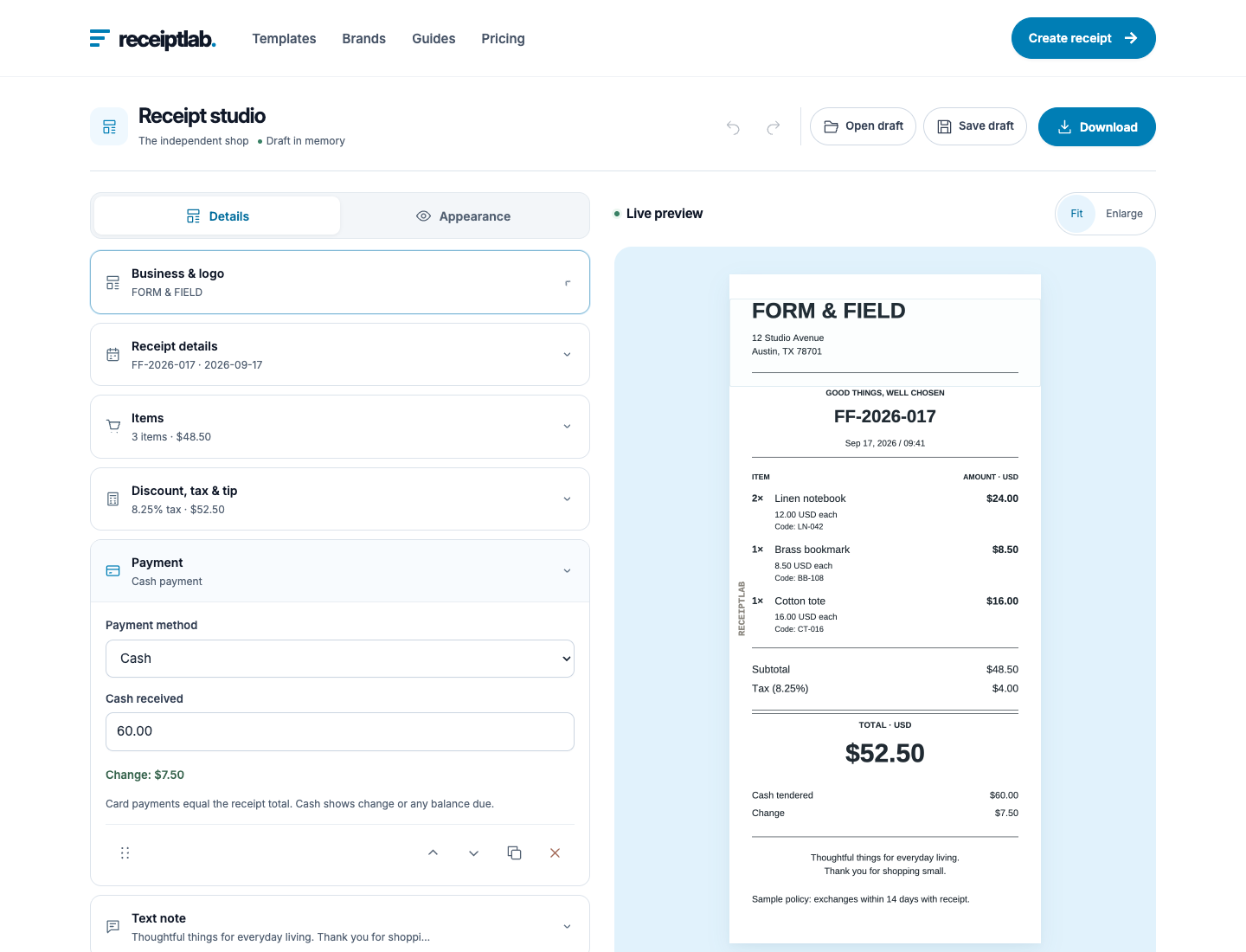
Cash received is the editor’s field name; Cash tendered is the label on the finished receipt. They refer to the same entered amount. Do not put the change amount or the final sale total in that field unless it is the amount actually handed over.
The same $52.50 sale, three ways
Each fictional example below contains two $12.00 notebooks, an $8.50 bookmark and a $16.00 tote. The $48.50 subtotal plus $4.00 in illustrative tax makes a $52.50 total. These are alternative payment states of one example sale.
| Situation | Cash received | Change | Balance due |
|---|---|---|---|
| Exact payment | $52.50 | $0.00 | $0.00 |
| Customer gives $60 | $60.00 | $7.50 | $0.00 |
| Only $50 received | $50.00 | $0.00 | $2.50 |
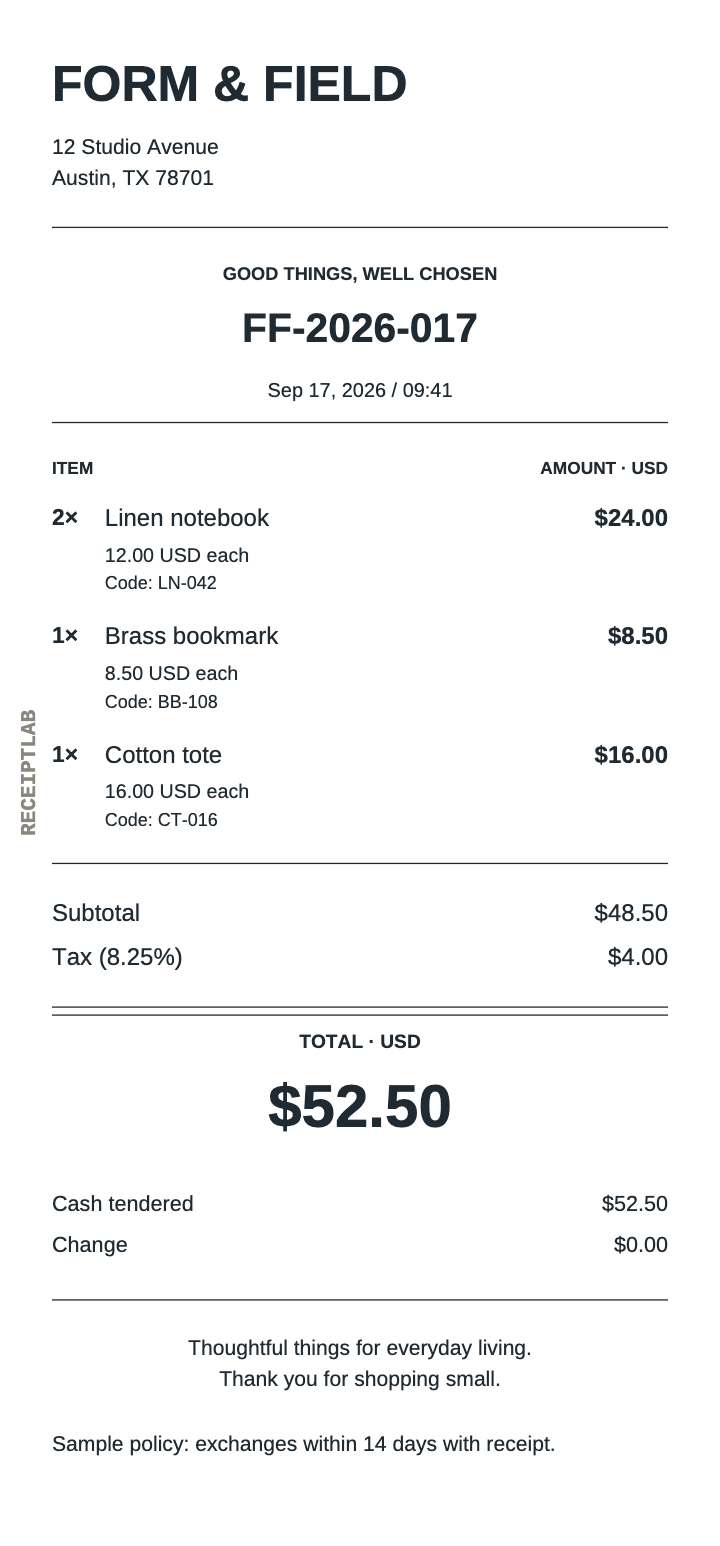
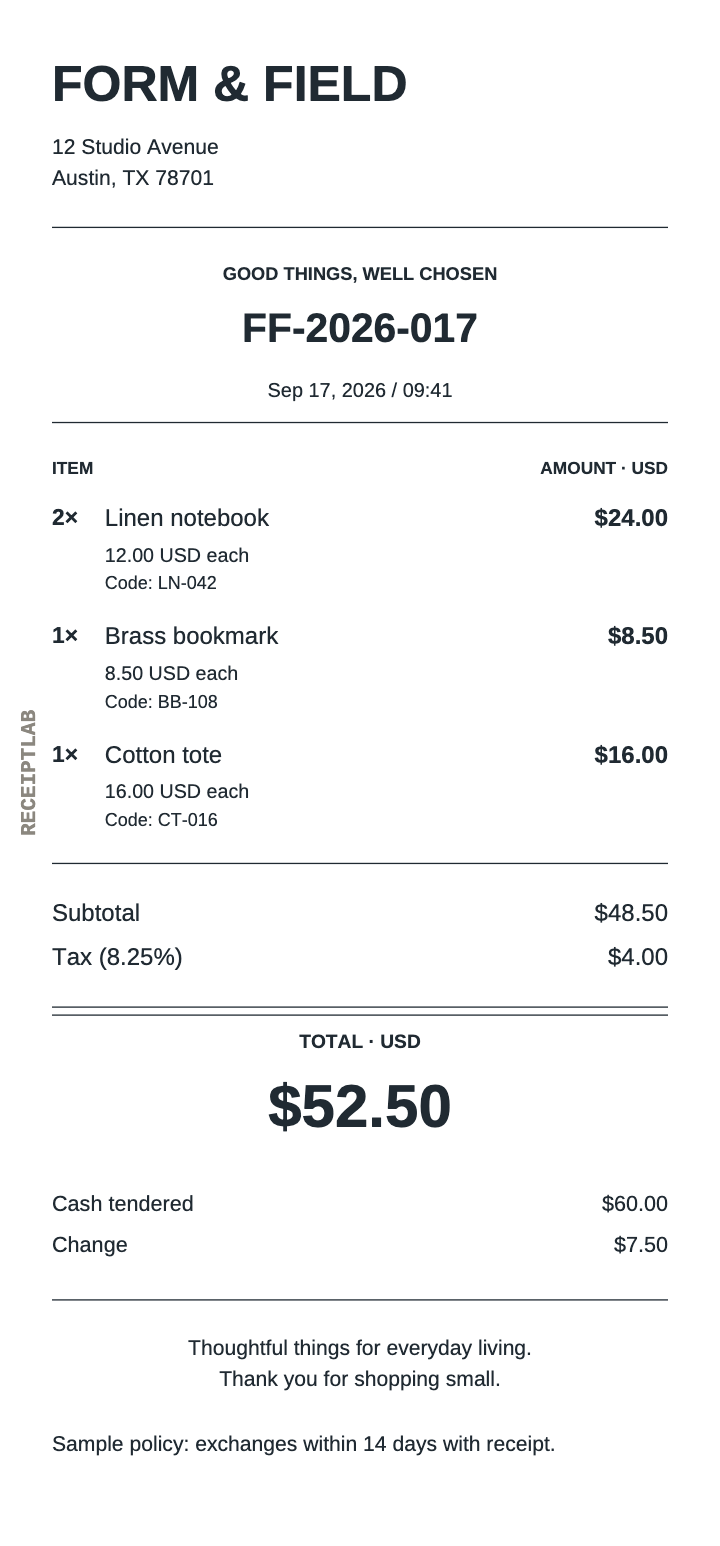
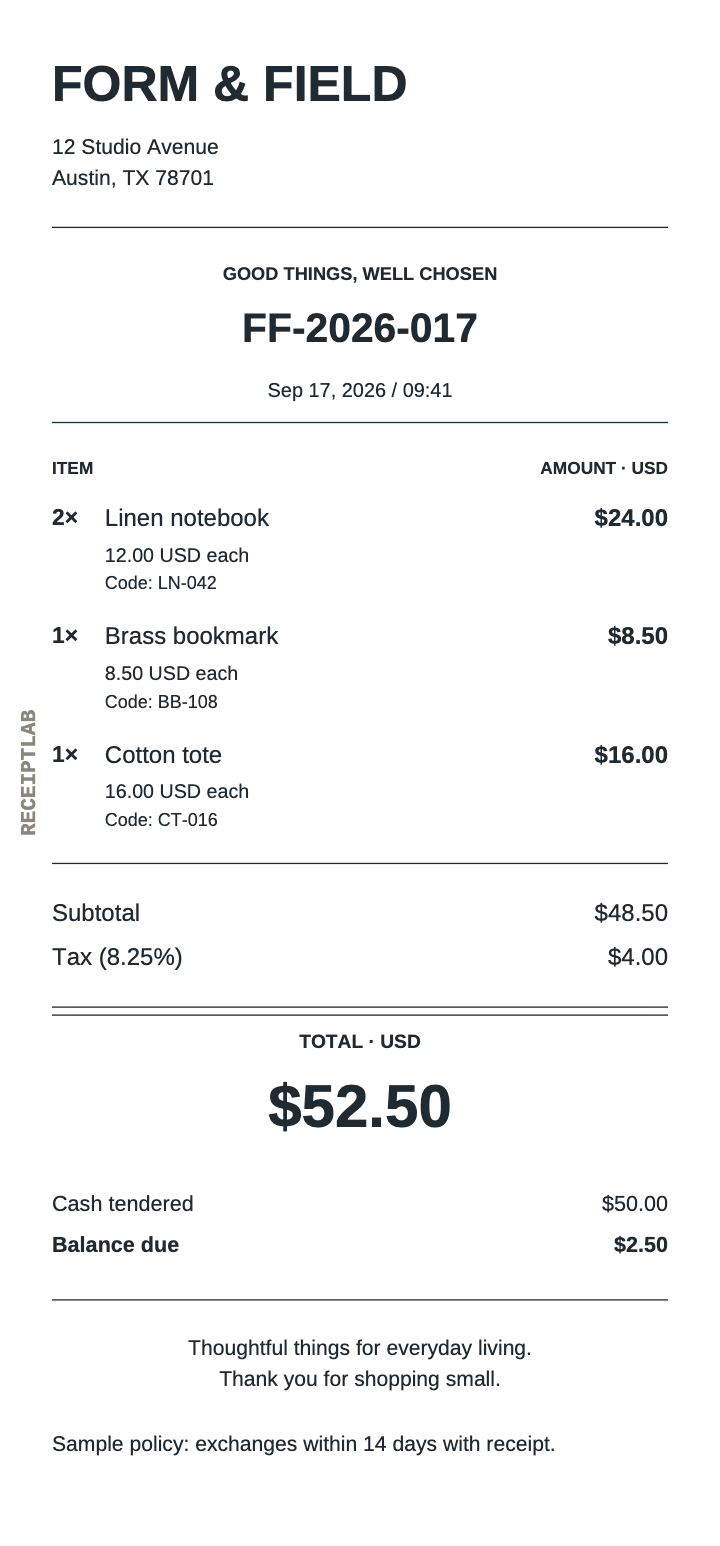
All three receipts keep the same sale total. Changing Cash received changes the payment result, not the item charges. ReceiptLab shows a balance due when cash is short; otherwise it shows change, including $0.00 for exact payment.
A balance due is not a paid-in-full receipt
If you receive $50.00 for this sale, leave the $52.50 total intact and record the $50.00 received. Do not reduce an item price just to remove the $2.50 balance. Do not add a “paid in full” note to the shortfall example.
ReceiptLab records one current cash amount per receipt. It is not a cash book, instalment tracker or payment ledger, and it does not keep a history of later payments. Use your own records to track a remaining balance and any later payment.
A blank Cash received field counts as zero, which leaves the whole total due. Selecting Card instead records payment equal to the total; it does not resolve, collect or verify a cash shortfall.
Check the payment before downloading
- Confirm the receipt number and date for this sale.
- Compare the item amounts, subtotal, tax and final total.
- Count the cash and check the entered amount.
- Return the displayed change, or keep the remaining balance clear in your records.
- Download the receipt and save an editable draft if you need it later.
Use the totals guide if the sale total needs checking, and file help for saving and reopening drafts.
Free PNG and PDF downloads include the ReceiptLab watermark, as these examples show. Paid exports without the watermark are planned; checkout is not available yet.