Start here
How to make a receipt online
To make a receipt, enter who sold what, when the transaction happened and how it was paid. Check the item amounts and final total, then export a copy. The walkthrough below produces a $52.50 shop receipt in ReceiptLab.
The receipt you will make
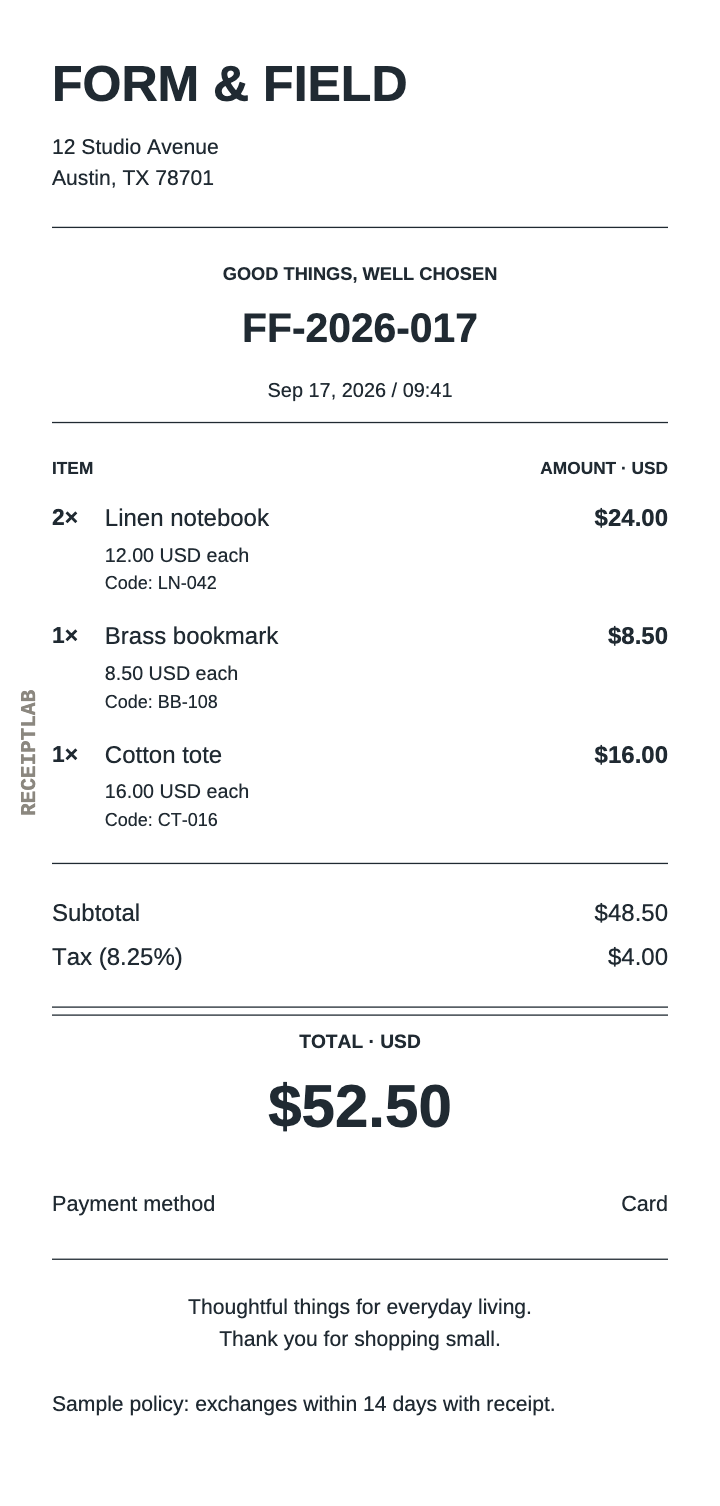
Form & Field sells two linen notebooks, a brass bookmark and a cotton tote. The items total $48.50; the illustrative 8.25% tax adds $4.00, for a $52.50 total.
Open this exact example to follow along. For your own receipt, choose a receipt template and replace its sample content with your transaction details.
The example records a payment already made. Choosing a payment method in ReceiptLab does not collect money.
Free PNG and PDF downloads include the ReceiptLab watermark, as these examples show. Paid exports without the watermark are planned; checkout is not available yet.
1. Enter business and receipt details
In Business & logo, enter your business name and the address or contact information you want on the receipt. A logo is optional. You can add a PNG, JPEG or WebP, change its width and position, or remove it.
Open Receipt details and set the receipt number, date and time. The example uses FF-2026-017, September 17, 2026 and 09:41. For your own sale, choose a reference from your records; the editor does not generate a new sequence for you. The manual numbering guide explains how to keep reused drafts distinct.
Also review any extra text or information sections already in the template. Replace sample notes, references and policies along with the main business heading.
2. Enter items and check the total
Open Items. Put each different product on its own row, and enter the price of one unit in Unit price. For the notebooks, quantity 2 at 12.00 gives a $24.00 line. Use Add item for another row; up to 40 items are supported.
| Description | Quantity | Unit price | Amount |
|---|---|---|---|
| Linen notebook | 2 | $12.00 | $24.00 |
| Brass bookmark | 1 | $8.50 | $8.50 |
| Cotton tote | 1 | $16.00 | $16.00 |
In Discount, tax & tip, choose USD, leave discount and tip at zero, and enter 8.25 in Tax rate (%) to reproduce this fictional example. Check the $48.50 subtotal, $4.00 tax and $52.50 total. Use the applicable inputs for your transaction; the example rate is not a recommendation.
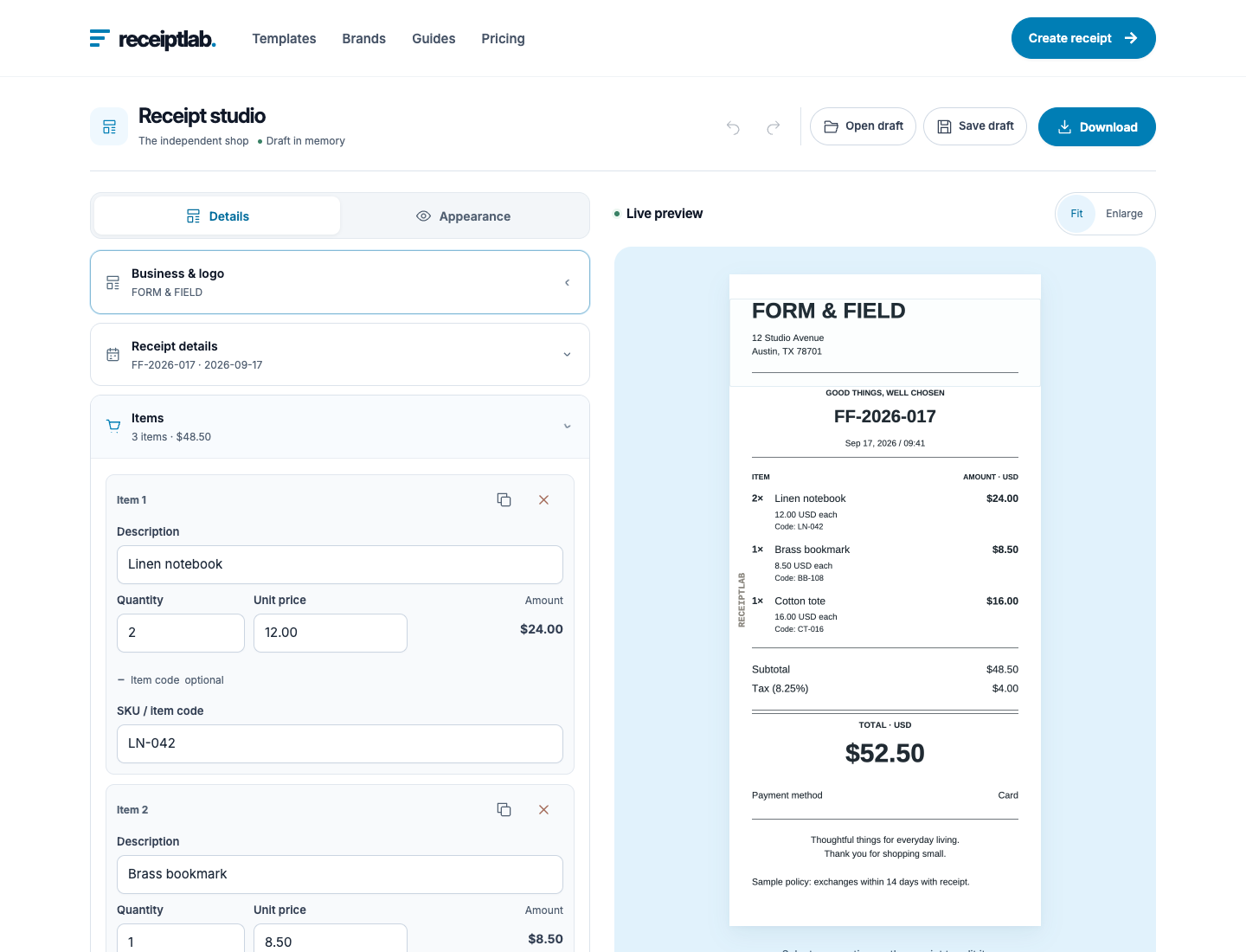
For field-by-field guidance, see the itemized receipt example. For discounts or fractional quantities, see how receipt totals are calculated.
3. Record the actual payment
In Payment, the example has Card selected. This records payment equal to the receipt total; it does not charge or verify a card payment.
For a cash sale, choose Cash and enter the money handed over in Cash received. The preview labels that amount Cash tendered and shows change or a balance due. Follow the cash receipt examples to compare those outcomes.
4. Review, download and keep an editable copy
In Appearance, choose the paper size and check long item names, extra notes and the payment summary in the preview. This shop example uses 80 mm. The paper-size comparison shows the same sale at 58 mm, 80 mm and A4.
Select Download, choose PNG or PDF, confirm the paper size and download. PNG is an image; PDF includes selectable text and can continue across pages. Open the finished file and check the business name, reference, date, item amounts and payment details before sharing it.
Select Save draft to keep a separate editable file on your device. Later, use Open draft to continue. A finished PNG or PDF cannot be reopened as a ReceiptLab draft. Work is not saved automatically, so save before closing or reloading the tab. See draft and download help for the file controls.